CRM Data Import: A Practical Guide to Clean Lead Lists
Master CRM data import with proven steps for clean lead lists. Learn to prep exports, map fields, dedupe records, and fix common import errors fast.
You're staring at a spreadsheet that looked fine yesterday, and now every column feels one click away from breaking your CRM. The names are mixed, phones are inconsistent, half the dates are in the wrong format, and the moment you open the import wizard you can already see the duplicates coming. That's the point where a crm data import stops being a file upload and turns into a controlled migration.
What a Clean CRM Data Import Looks Like
A clean import starts before anyone clicks the upload button. In practice, that means someone looks at the raw file with enough skepticism to catch the problems that would otherwise show up later in HubSpot, Salesforce, or Pipedrive as broken ownership, unclear source values, and records nobody trusts. I've seen teams push the full file first and spend the next week cleaning up issues that were visible in the first five minutes.
What success looks like
A good import feels uneventful after it goes live. The records arrive with standardized fields, the right owners, and enough context for sales or customer success to use them without immediate cleanup. A practical import workflow starts with a small test batch of 50–100 records, then checks the imported counts and sample fields against the source before the full load, so mapping mistakes and formatting problems show up before they spread through the entire file (quality-focused import workflow guidance).
Practical rule: if the test batch is messy, the full import will be messier.
What failure looks like
Bad imports usually show their problems in three places, even when the wizard says the file “succeeded.” You get rejected rows, duplicate contacts, and records that exist in the CRM but are missing the fields your team needs. The usual trouble spots are inconsistent date, phone, and address formats, duplicate records, and unmapped required fields, so the work that matters most happens before the upload, not during it.
That matters even more after the records land. Imported fields decay at different speeds in production CRMs, and the ones that go stale fastest are usually owner assignment, source attribution, phone numbers, and any field that depends on a workflow or rep update. Teams need merge-versus-quarantine rules for that reason. Merge records when the match is clear and the data is still usable. Quarantine records when the source is ambiguous, the identifiers conflict, or a field would overwrite something your team still relies on.
This section is written for SDR ops leads, agencies moving client lists, and teams pushing enriched records into systems like HubSpot or Salesforce. If the file comes from spreadsheet leads, enrichment tools, or multiple source systems, the goal stays the same, a CRM where the data is reachable, attributable, and usable the moment it lands.
Preparing Your Source File Before Any CRM Sees It
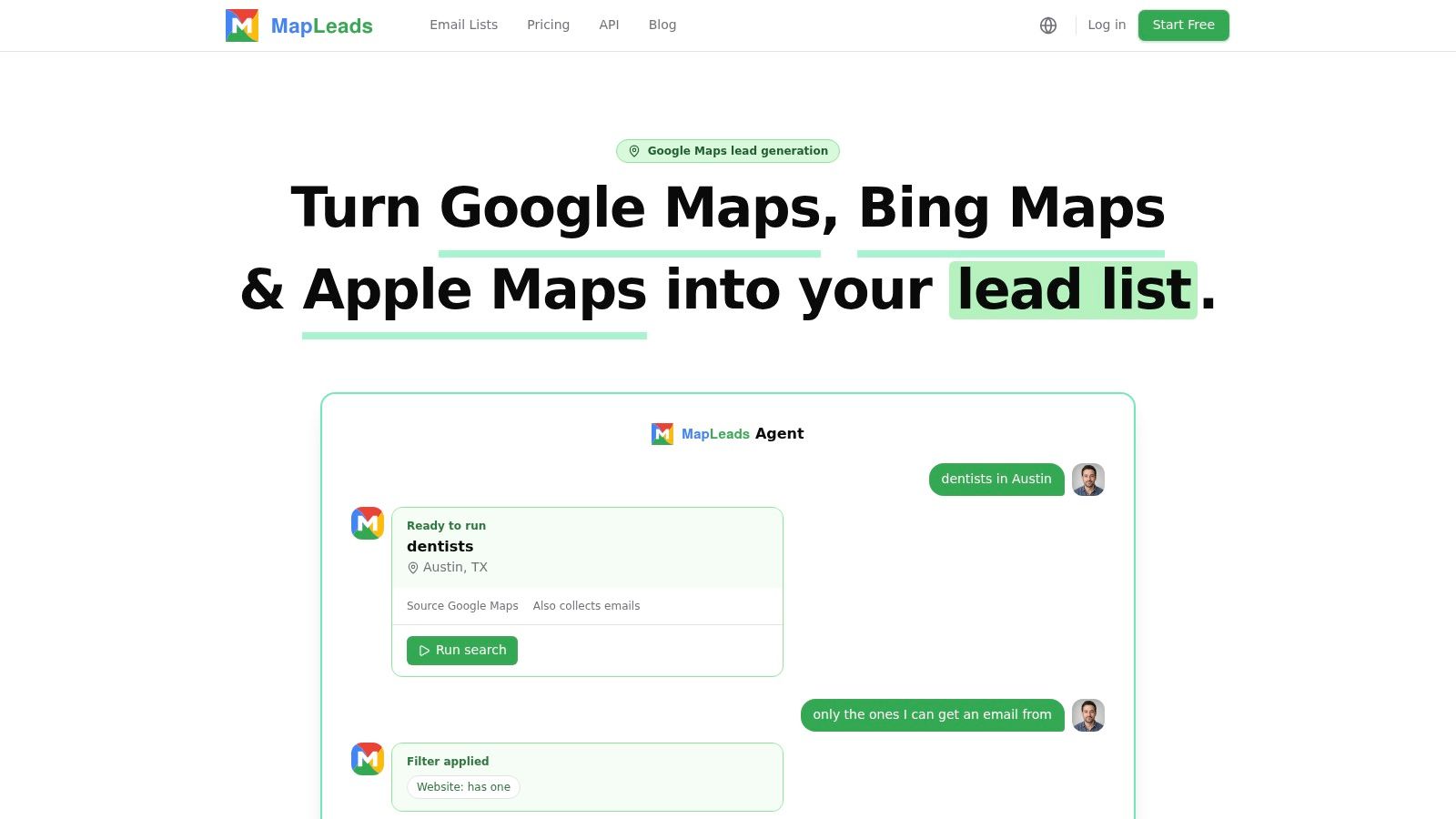
A clean import usually starts with a file that looks almost plain. The work happens before anyone opens the wizard, because once a CRM starts guessing at field meaning, the mistakes are harder to unwind. If the source comes from a lead list, enrichment flow, or spreadsheet cleanup pass, keep it in a clean CSV, Excel, or JSON format with one header row and stable column names. For lead generation workflows, a structured export like the one from MapLeads email lists keeps the file closer to CRM-ready before mapping even begins.
Standardize before you map
The safest approach is to standardize values before mapping. Use one date format across the file, one phone format, and CRM-native labels for country, region, and yes/no fields, so the import tool does not have to reconcile six versions of the same value. Technical import guidance also recommends defining compound or legacy IDs so contacts, companies, and historical records can be re-linked after migration, especially when the target CRM schema differs from the source file. A practical walkthrough of that setup is covered in technical import wizard guidance.
A lot of teams lose time here. Excel can strip leading zeros from phone numbers, mixed date formats can sort incorrectly, and merged cells can split a column in ways that are not obvious until the import rejects rows or shifts values into the wrong fields. Clean the file in the source system or in a staging sheet, not inside the CRM.
Check the file like it is going to production
Before upload, scan for a few basic problems. Make sure there is only one header row, that no columns depend on merged cells, and that phone, email, and country values stay consistent from top to bottom. Then sort or filter for obvious gaps, because missing required fields are easier to fix in a spreadsheet than after the CRM has already created partial records.
- Fix phone formatting first: keep one convention for country codes, separators, and extensions, or downstream validation will treat the same number as multiple values.
- Flatten dates: mixed date styles are a recurring source of bad imports because spreadsheets and CRMs can read them differently.
- Remove duplicate source rows: pre-import deduplication is cheaper than untangling duplicate records after the fact.
- Back up the original file: if the normalized version goes sideways, you will want the untouched source for comparison.
If the file came from multiple tools, enrichments, or manual edits, compare a sample of cleaned rows against the original export before moving on. That quick check catches the kinds of drift that usually surface only after the CRM starts rejecting fields or creating records your team cannot use. Imported fields also decay at different speeds once they are live. Owner assignment, source attribution, phone numbers, and any field that depends on a workflow or rep update tend to go stale first, so merge-versus-quarantine rules need to account for that. Merge records when the match is clear and the data still supports active work. Quarantine records when the source is ambiguous, the identifiers conflict, or one field would overwrite something the team still relies on.
Mapping Fields Across HubSpot, Salesforce, and Pipedrive
Mapping isn't just matching column names, it's deciding how your source file will behave once it enters the CRM. A phone number can be a phone number, a lead identifier, or a signal for deduplication, depending on the platform and the import path. If you get that wrong, the data may technically land but still be operationally useless.
Platform differences matter more than people expect
HubSpot is usually friendlier when you need custom properties, but that doesn't mean every field should become a custom property. If the column already matches a standard object field, use the native field and reserve custom properties for source-specific data you'll report on later. Salesforce usually demands more discipline up front, especially when you're using Data Loader or an import wizard that requires a mapping file or field-pairing plan before the load starts, and Pipedrive makes you think carefully about whether a column belongs on a person record or an organization record.
One practical rule applies across all three. Owner assignment, lead source attribution, and lifecycle defaults should be set intentionally before import, not inferred later by automation. If the imported records don't arrive with the right owner or stage, your reporting will drift immediately.
For teams moving leads from landing pages into HubSpot, a workflow like sync Unbounce leads with HubSpot shows how important it is to decide the field map before the data starts flowing. The same logic applies to any source system that pushes into a CRM through a form, CSV, or integration.
Map for reusability, not just completion
The cleanest imports usually include a short mapping sheet that documents the source column, the destination field, and any transformation rule applied along the way. That matters when the next batch arrives from a different source but uses the same schema, because the mapping file becomes your reference instead of a guess.
Here's the decision order I use in practice:
- Match required fields first. Don't worry about optional enrichment until the CRM can accept the record.
- Separate person and company data. In Pipedrive, that split is easy to mishandle if one spreadsheet tries to do both jobs.
- Preserve source attribution. If the lead came from a webinar, scrape, or enrichment platform, keep that value visible.
- Treat custom fields as reporting assets. If nobody will use the value after import, don't create it.
A useful supporting reference for teams documenting lead-field logic is the MapLeads leads documentation, especially when the source file contains enrichment columns that don't match the CRM's native structure.
{% youtube id="Lgl_vKT5GAg" /%}
When the mapping is done well, the records feel native inside the CRM. When it's done badly, sales reps end up asking why a company field looks like a contact field and why the lifecycle stage is blank on half the import.
Deduplication Rules That Match Your Use Case
Duplicate handling is where imports often get oversimplified. Teams like the idea of “just merge duplicates” until a merged record wipes out a verified email, a recent note, or source history that was still guiding routing. Microsoft's Dynamics import guidance treats duplicate identification as part of import setup, and that's the right mindset, because dedupe needs a rulebook, not a reflex. A separate review of deduplication best practices from RingLead makes the same practical point, match rules to the quality of the source and the risk of losing fields that still matter.
Match the rule to the record type
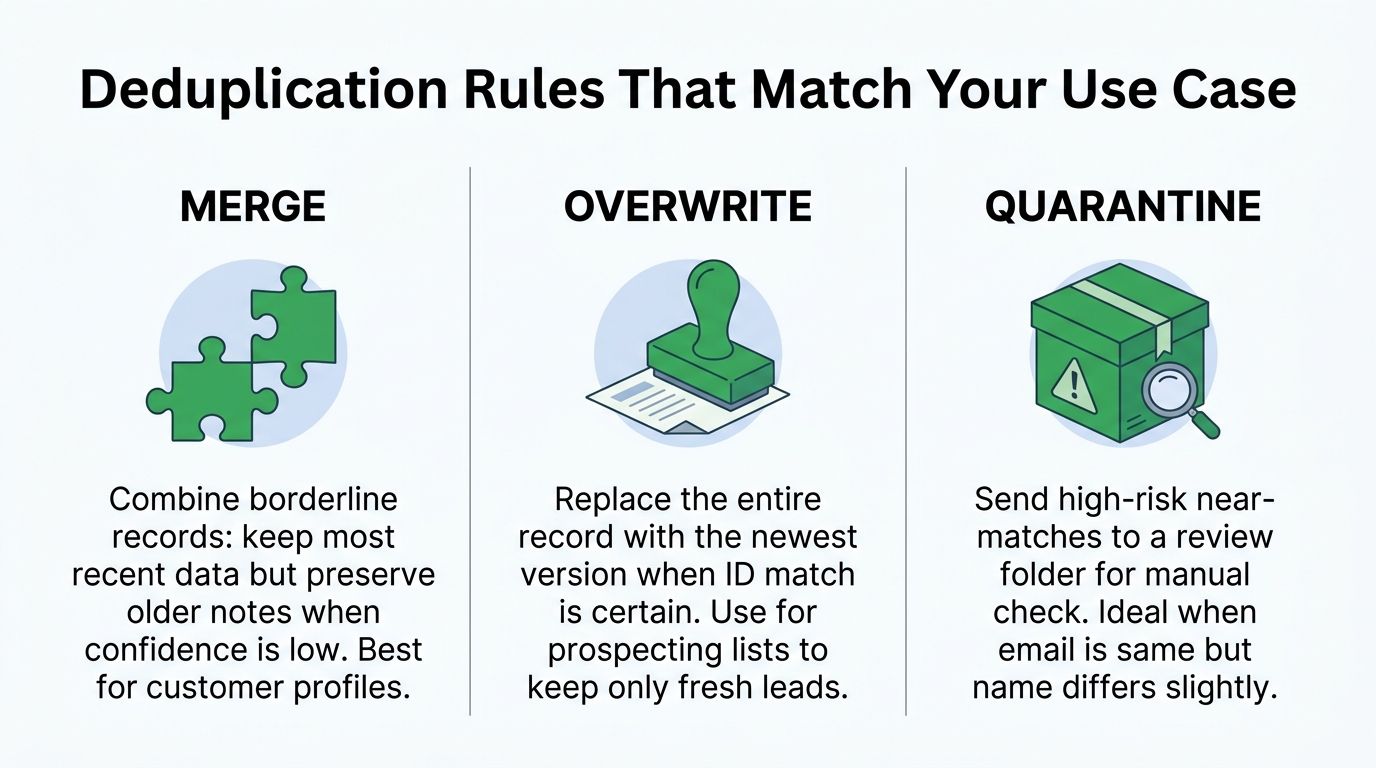
A prospecting list and a compliance-sensitive contact list should not use the same dedupe threshold. Prospecting data usually works better with overwrite logic when the ID match is certain, because the goal is to keep the freshest version of the lead and avoid stale outreach. Customer records often deserve merge logic, because the CRM may already hold notes, historical activity, or support context that should stay intact. Borderline matches belong in quarantine when confidence is low, especially when the email matches but the name or company is slightly off.
Borderline duplicates are not a cleanup problem. They are a decision problem.
Use more than one matching signal
Email alone helps, but it is not enough for messy imports. Phone, domain, and fuzzy name matching catch records that look different on the surface but still point to the same person or organization. The hard part is avoiding auto-merge rules that ignore context, because modern CRM teams often import enriched records alongside existing system data, and a technically duplicate record may still carry unique value such as source history or verified contact fields.
For that reason, I would rather quarantine a few uncertain matches than let a rule merge away a good field. A record with the same email but a more verified phone number should prompt review, not blind action. A record with a duplicated company domain but a new decision-maker title might belong in the CRM, but not as a merged overwrite of the older contact.
Build a simple decision framework
- Merge: use when the match is strong and older notes still matter.
- Overwrite: use when the record is clearly the same lead and freshness is the priority.
- Quarantine: use when a human needs to check a near-match before any field is lost.
If you are importing from multiple teams or third-party enrichments, this is the difference between a workable CRM and one that slowly erodes trust. Good dedupe does more than remove duplicates, it preserves the context that makes the record worth keeping.
Running the Import and Validating the Results
A clean import run shows its quality in the first batch. I start with a small test load because speed does not matter if the sample already shows missing values, shifted fields, or bad counts. Back up the source CRM first, run a test batch, then compare imported record counts and sample fields against the source before you scale the job, as recommended in quality-focused import workflow guidance.
Use a controlled rollout
Start with the test batch, not the full file. If the CRM accepts the rows, compare the imported totals to the source and spot-check fields like owner, source, phone, and company against the original file. That catches silent failures, where the record lands but key values are blank or shifted into the wrong place.
If the test batch looks wrong, stop there. Fix the source file or mapping, then rerun the test before touching the larger import. A rollback backup matters because large migrations can fail on platform limits, and import planning should account for compatibility checks, field-pairing decisions, and a recovery path before execution.
Don't scale a broken mapping. It just creates more broken records faster.
Common import failure points and quick fixes
| Failure Point | Likely Cause | Quick Fix |
|---|---|---|
| Missing required fields | Source column not mapped or empty values in the file | Fill the column, or map a valid fallback before rerunning |
| Partial import | Platform constraint or batch issue | Split the file into smaller chunks and rerun in sequence |
| Duplicate records | Weak dedupe rule or inconsistent formatting | Standardize fields first, then recheck duplicate logic |
| Blank key fields after import | Silent mapping mismatch | Review sample rows against the source file and remap |
| Rejected dates or phones | Mixed formatting in the source | Normalize the column before another import attempt |
Log what changed
Keep a simple runbook with the import file name, date, CRM object, mapping rules, and any anomalies you saw during the test. That log becomes your proof trail when someone asks why a field looks different after the migration, and it saves time when the next batch comes through.
For larger files, split the import into safer chunks instead of trying to force one giant upload through the system. The goal is not to move data as fast as possible, it is to move it without creating a cleanup project for the next person.
Keeping Imported Data Healthy After It Goes Live
Many organizations treat import quality like a launch task, then act surprised when the CRM degrades a month later. That's a mistake. Once records are live, the imported fields start aging immediately, especially when the CRM is fed by multiple sources, enrichment tools, and automated syncs. A useful contact-database discipline is to treat the CRM as a living system, not a one-time file dump, which is why a contact database management guide is worth reading if you want a broader operations lens.
Watch the fields that decay first
Some imported fields age faster than others. Phone numbers, job titles, company size, and addresses are usually the first to become unreliable because people change roles, businesses move, and contact channels go stale. If the source was a map-based list or a scraped business directory, that decay can happen even faster because listings, ratings, business hours, and claimed status can change after the export.
That's where ongoing import hygiene matters. If your team uses a source like MapLeads sales teams, the imported record shouldn't be treated as permanently current just because it was verified at export time. Revalidation needs a cadence, even if it's light-touch, so you can refresh the fields most likely to drift before reps start trusting bad data.
Build a simple hygiene loop
Use the same logic every time new data lands. Recheck contactability fields, confirm company-level attributes that feed segmentation, and review records that were quarantined or merged with low confidence. If a field is critical for routing or outreach, it deserves periodic review. If it only exists for reporting, decide whether it still needs to be kept at all.
Imported data earns trust over time. It doesn't get it by default.
That's the practical difference between a CRM that helps a team move and one that creates work without fanfare. Clean imports matter on day one, but import hygiene is what keeps them useful on day thirty and day ninety.
If you want cleaner CRM imports without rebuilding your workflow from scratch, MapLeads can export structured lead lists from Google Maps, Apple Maps, and Bing Maps with standardized columns, verified contact fields, and CRM-friendly file formats. Visit MapLeads to pull a list that's easier to map, dedupe, and keep healthy after import.